-
Tabbed Command Console For Windows
- Supports Windows Command, Powershell, Bash and more
- 32-bit and 64-bit consoles together in the same app
- Persistent command line histories and favorites
- Run tab as administrator or as a different user
- Stay-on-top, printing, save text to file
- Command completion and syntax help
Try it FREE for 30 days and find out how much PromptPal can help you!
-

Tabbed Interface
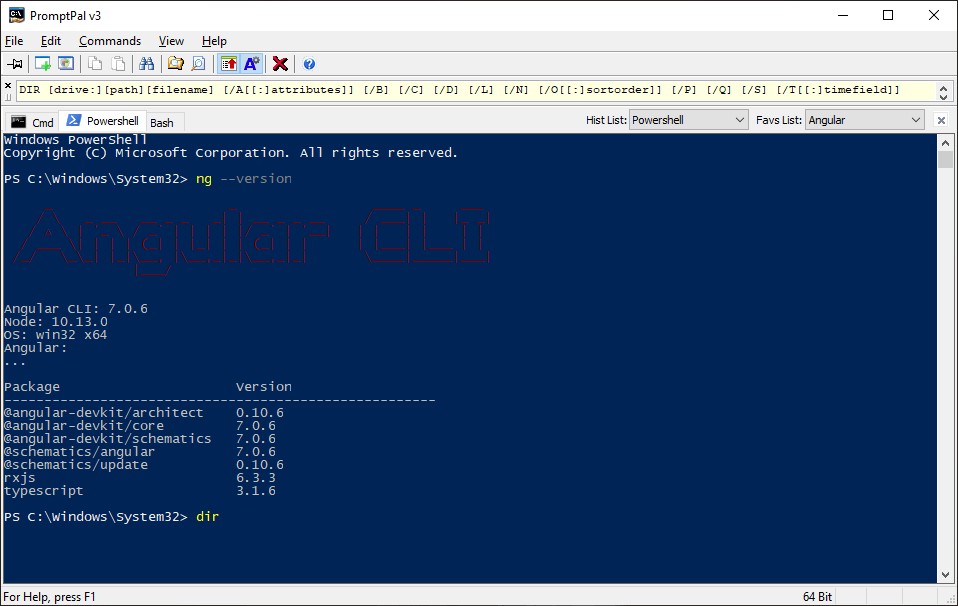
Multiple command shells running side by side in tabs. Define a working set of tabs to open automatically every time you launch PromptPal.
-

Cmd, Powershell and Bash
Supports Windows Command, Powershell, Windows 10 Bash and other compatible shells. Mix 32 bit and 64 bit shells in the same app.
-

Multiple Histories/ Favorites
Create named command line and favorite history lists and assign them to your tabs however you wish.
The power of the command line combined with Windows ease of use
PromptPal is a replacement for the Command Prompt, PowerShell and similar Microsoft Windows command consoles. Instead of running in separate windows they now run as tabs within PromptPal's user-friendly screen. PromptPal isn't just for power users and administrators; developers using command-line tools such as the Angular CLI will also benefit hugely from PromptPal's labor and time-saving features:
-
Tabbed InterfaceHave all your consoles running alongside each other in tabs with a single consistent interface that includes common Windows features such as: stay-on-top, printing, save session text to file, mouse-driven selection, even drag-and-drop into and out of PromptPal's main window.
-
Multiple shells supported, both 64 bit and 32 bitTabs can be launched using the standard command processor, Windows Powershell and other compatible shells such as the Bash shell available in Windows 10. It doesn't matter if one shell is 32 bit, and one is 64 bit; they can run alongside each other in the same instance of PromptPal.
-
Multiple Persistent Command Histories and Favorite Commands ListsCreate command history lists that automatically store your most recently used command lines and preserve them from one session to the next. Keep must-have command lines in named favorites lists so that they are always to hand. Share the lists between tabs as you wish or have separate lists for specific types of work - the choice is yours.
-
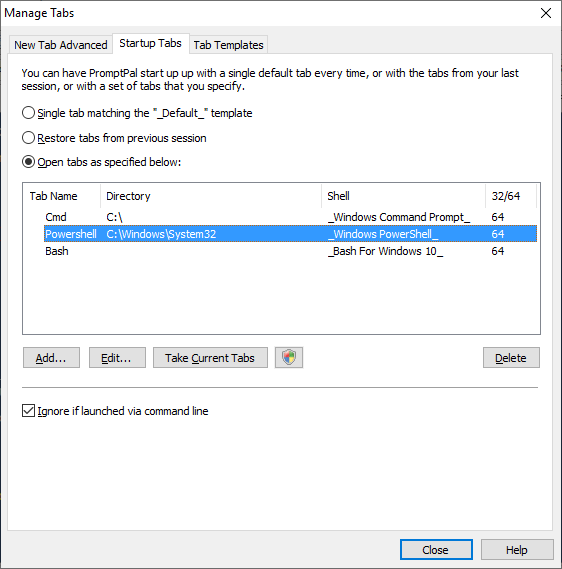
Tab Templates for your most-used shell configurationsSave your most-used tab configurations as templates - including shell type, starting directory and initial command line - to make re-opening them easier and faster. Specify a working set of tabs that open automatically whenever you launch PromptPal.
-
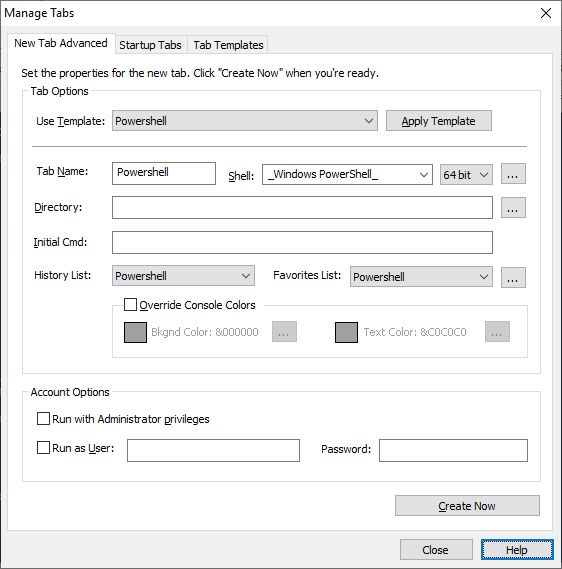
Run As Administrator / Run As Different UserNeed to execute a series of commands with Administrator privileges? Quickly launch your default shell as Administrator in a new tab, or optionally launch a shell under different user account.
-
Enhanced EditingIncluding selection, copy & paste, drag & drop, folder and file browsing.
-
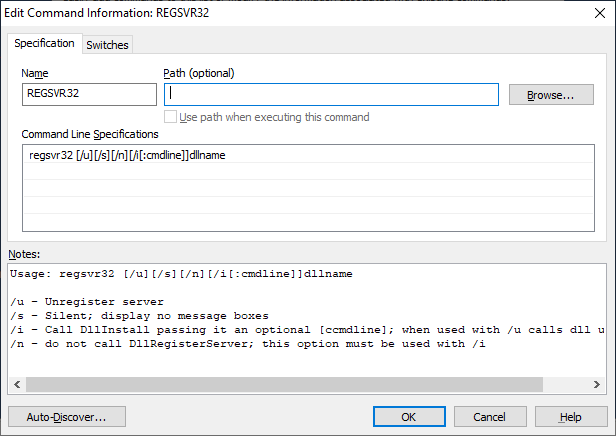
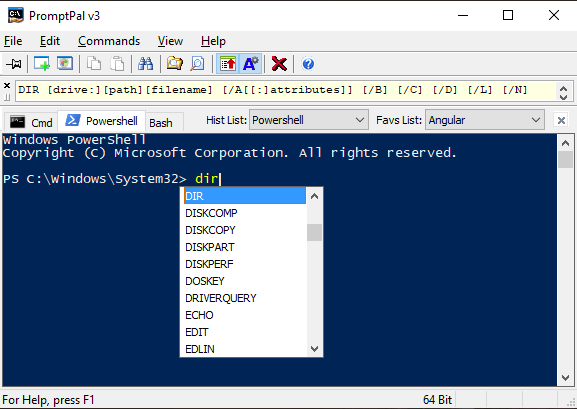
Command Completion AssistancePromptPal provides popup completion assistance for known commands and command switches. Add your commands to PromptPal so that you never have to look up their various switches and options again.
-
Integration with Windows ExplorerInstantly open your favorite shell at a specific folder by right-clicking in a file browser window and choosing "Open PromptPal Here".
You'll wonder how you ever managed without it!
Find out how much PromptPal can help you.
Download a FREE 30 day trial now!
Quick and Easy Install - Clean Uninstall. If you decide to buy our software you can simply purchase a license and use it to upgrade your trial installation to a fully licensed solution.
Just download and go!
Mike G
"As a dba/sys admin, I don't know how I survived all this time without PromptPal. .... This is a great tool for admins, power users and maybe even novices just wanting to learn and have a helping hand when venturing into the command line."
Mystic
"Awesome application. This is so badly needed by anyone using the CMD prompt.."
Dextius
"I have been searching for something like for a LONG time...Awesome app"
Andrew Alexander
"I've just upgraded to v1.2 and just want to say congratulations on making a superb product better. Particularly the new path completion features - good job!"
Screenshots
-
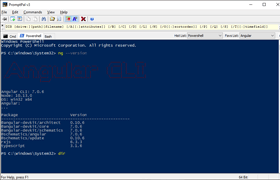
Run your most-used shells together in tabs
-
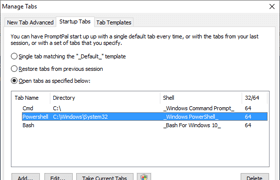
Choose the tabs that PromptPal opens at launch
-
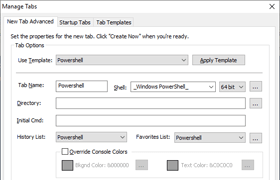
Create new tabs as admin or as a different user
-
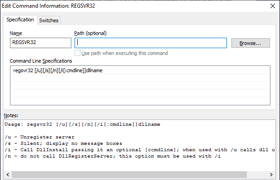
Define info on commands for tips while you type
-
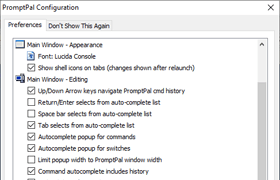
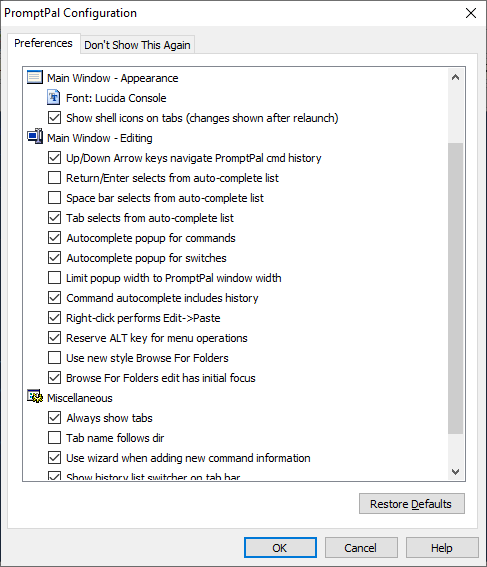
Configure editing to match your working style